
Add your first story from the shared library
Browse curated stories, import a copy, and start YouTube videos from the shared library.
Open the shared library
From the main navigation, click or tap Shared Library. You will see curated stories you can add to your own library, including standalone stories and series.
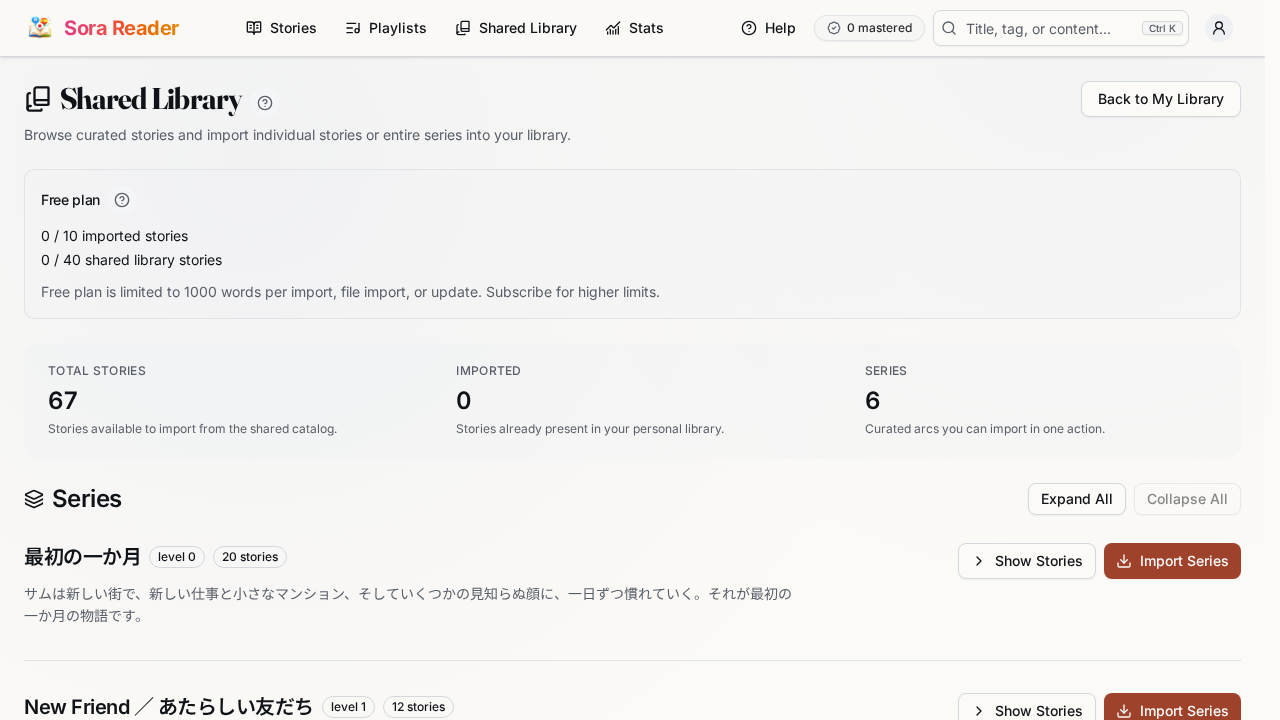
Each story entry shows its title, level, tags, and a short preview. Some entries are YouTube videos. Video entries show a Video badge and may show a play icon on the thumbnail. Series appear in their own section so you can add the whole series at once or expand it and choose one story.
Pick a story
Choose something at or slightly below your current reading level for your first story. The goal is to build momentum, not to struggle through every sentence. Lower-level stories are usually a better first choice because they let you get comfortable with the reader while still meeting new words in context. Make sure your study language is set correctly before importing.
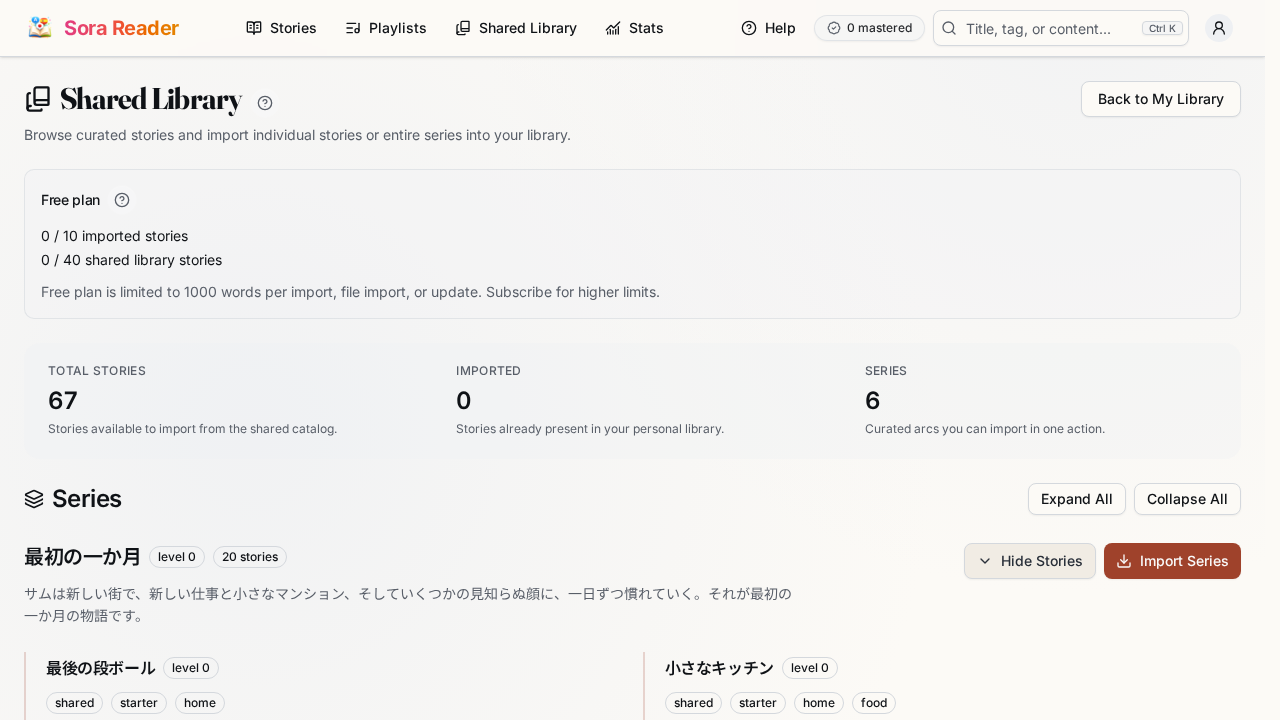
For a series, click Show Stories to see the individual stories inside it. You can then import one story, or click Import Series if you want the full set in your library. YouTube videos in a series are opened through YouTube instead of being added by Import Series.
Import a regular story
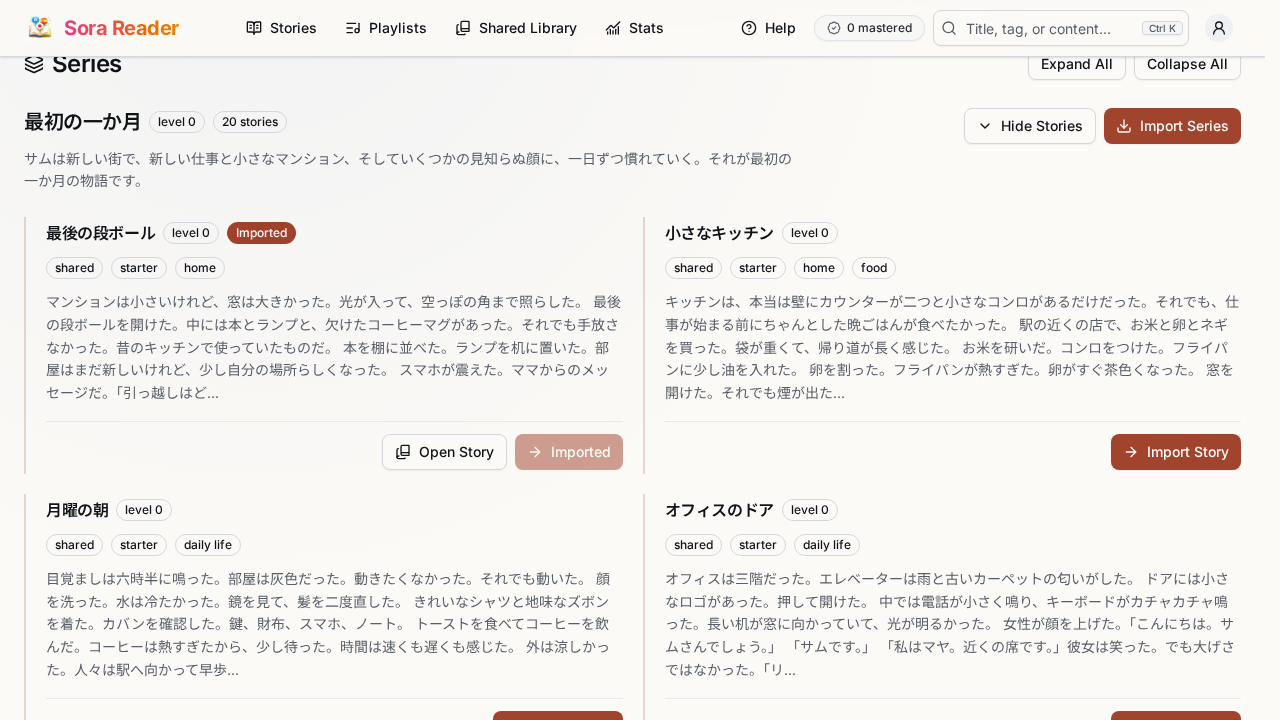
Once you have found a story, click Import Story. Valo Reader adds a copy to My Stories so you can read it, track progress, and study vocabulary from it.
After the import finishes, the button changes to Imported. If the story is ready to read, you will also see Open Story.
Import a YouTube video
YouTube videos use a different flow. They need the Valo Reader browser extension, because the import starts from the video page on YouTube.
If the extension is not detected, the Import from YouTube button stays disabled and Valo Reader shows Install Extension. Install the extension first, then return to the Shared Library.
Once the extension is detected, click Import from YouTube. Valo Reader opens the video on YouTube. From there, click the Valo Reader extension button to import the captions into your library.
YouTube imports depend on the video having usable captions. If a video does not import cleanly, see YouTube imports for what works best and what can block caption import.
After import
Use Open Story to start reading right away, or click Back to My Library to see the story on your Stories page alongside the rest of your reading list.
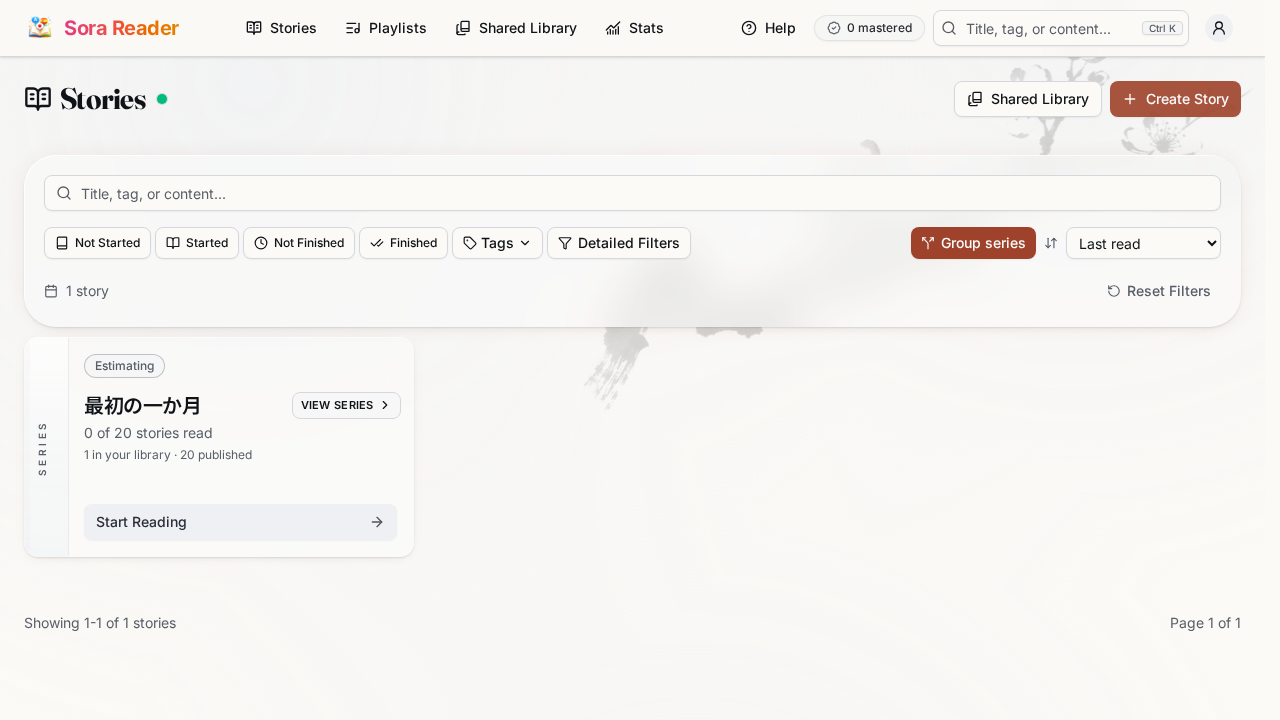
Most shared-library stories are ready within a few moments. If a story still looks like it is getting ready, wait briefly and refresh your library. If it stays stuck, see Troubleshooting imports.
Next steps
Once your story opens, you can read page by page, switch to sentence mode, look up words, and build vocabulary as you go. The Reading page vs sentence modes article will help you choose a layout, and Reader study features overview explains the study tools available on every page.