
Set up Anki export
Install Anki and AnkiConnect, enable the Valo Reader extension, and configure deck and field mappings in Settings.
Set up Anki export
Anki export is optional. Use it only if you want to study words from Valo Reader in Anki as part of your routine.
Before you begin, make sure all of the following are installed and running on the same computer:
- Anki desktop app — installed and open while exporting
- AnkiConnect add-on — installed in Anki and allowed to accept connections
- Valo Reader Chrome extension — installed and granted access to your Valo Reader site
- Anki export settings in Sora — deck, note type, and field mappings configured under Settings → Reader → Anki export
Valo Reader in the browser cannot connect to Anki directly. The Valo Reader extension handles communication with Anki through AnkiConnect, which runs locally on your computer.
Install AnkiConnect
- Open Anki.
- Go to Tools → Add-ons → Get Add-ons…
- Enter the add-on code 2055492159 for AnkiConnect, click OK, then restart Anki when prompted.
- After restarting, go to Tools → Add-ons, select AnkiConnect, and click Config.
- Confirm the default address and port are set to http://127.0.0.1:8765.
Keep Anki open while setting up export or creating cards — AnkiConnect runs inside Anki and only responds while the app is running.
Install the Valo Reader extension
- Install the Valo Reader Chrome extension (or load the unpacked extension during development).
- Ensure the extension is enabled.
- Open Valo Reader in a browser tab and sign in.
The extension is required to connect Valo Reader to Anki and retrieve your available decks and note types.
Configure Anki export in Sora
- Open Settings → Reader → Anki export.
- Enable Anki export (or complete setup if configuration is incomplete).
- Click Test connection to check that Anki is reachable.
- Choose your preferred Anki deck and Note type.
- Map Sora values to Anki fields, then click Save Anki settings.
Once setup is complete, the Export to Anki option will appear in the reader.
Troubleshooting: “Cannot reach AnkiConnect”
| Problem | What to do |
|---|---|
| Anki is not open | Launch the Anki desktop app and keep it running. |
| AnkiConnect is missing | Install AnkiConnect and restart Anki. |
| Wrong port configured | AnkiConnect must use port 8765. Check the AnkiConnect config in Tools → Add-ons if you have changed it previously. |
| Firewall or VPN interference | Ensure localhost traffic (127.0.0.1) is allowed. Some VPNs block local connections. |
| Extension permissions blocked | Open chrome://extensions, enable Valo Reader, and grant access to your Valo Reader site. |
| Anki is running on another computer | Anki and your browser must run on the same computer. AnkiConnect only works locally. |
After fixing the issue, return to Settings → Reader → Anki export, click Test connection, and refresh the deck or note type list if needed.
Export a flashcard
Once setup is complete:
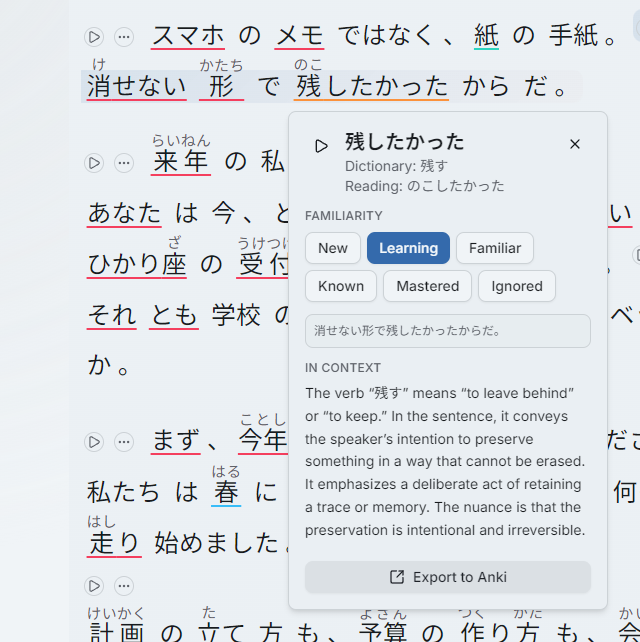
- Open a Word in the reader.
- Open the word details panel. See Word tokens and definitions for what the panel shows.
- Select Export to Anki.
Valo Reader creates a flashcard in your selected Anki deck using the current word, sentence, and any mapped content such as audio.
If export fails, first check whether the card was created anyway—timeouts can occur while generating definitions or audio. Also check whether Anki’s duplicate rules prevented the card from being added.